How ProtectMyMail works
Beta · Last updated: 27 October 2026
ProtectMyMail is a browser extension for Chrome, Edge and Firefox that adds three things ordinary email cannot do: it proves who really sent a message, it catches messages changed in transit, and it encrypts your mail end to end. You keep your address, your provider and your webmail.
ProtectMyMail proves who wrote an e-mail, and keeps what it says between you and the people you wrote to. You keep using Gmail or Outlook. The protection happens on your own computer, before a message leaves it and after it arrives, so you never have to take our word for anything: your ProtectMyMail app checks every proof itself.
1. What it is, and why
Ordinary email has two weak spots. Anyone can put any name in the "from" field, so you cannot be sure who really wrote to you. And your provider can read everything you send and receive. ProtectMyMail fixes both, without asking you to leave Gmail or Outlook.
It runs as a browser extension for Chrome, Edge and Firefox, in Gmail and Outlook on the web. A Safari extension and a desktop app for macOS and Windows, which works with any mail program (Outlook, Thunderbird, Apple Mail), are coming soon. You keep your current address and provider.
Where it works
Here is what you can use today, and what is coming.
| Browser or app | Gmail | Outlook on the web |
|---|---|---|
| Chrome | Available | Available |
| Microsoft Edge | Available | Available |
| Firefox | Available | Available |
| Safari | Coming soon | Coming soon |
| Desktop app for macOS and Windows | Coming soon | Coming soon |
- Versions. Chrome or Microsoft Edge 116 or later, or Firefox 140 or later, on a computer.
- Mailboxes. Gmail (mail.google.com) and Outlook on the web (outlook.live.com and outlook.office.com). The Outlook desktop program, Apple Mail and the mail apps on phones are not supported yet.
- Secure links open on secure.protectmymail.com in any up-to-date browser. Your recipient needs no extension and no account.
- In Firefox, the website cannot talk to the extension directly. A referral link you came through is not picked up by itself, and a plan you buy on the website reaches the extension within a few minutes, not at once.
12 languages
The extension, this website and this guide are available in 12 languages. In the extension, Automatic follows your browser's language, and you can choose another one in Settings.
- English
- Deutsch
- Français
- Español
- Italiano
- Português (Brasil)
- Nederlands
- Polski
- Türkçe
- 日本語
- 简体中文
- ไทย
2. The 2-minute tutorial
New to ProtectMyMail? Watch the video, or follow the six steps below. You need Chrome, Edge or Firefox on a computer, and a Gmail or Outlook mailbox you use on the web.
Video: set up ProtectMyMail in 2 minutes
- Install the extension - add ProtectMyMail to Chrome, Edge or Firefox from the download page. A welcome screen opens. Choose Set up a new mailbox.
- Enter your email address - the address of the mailbox you want to protect. A display name is optional.
- Enter the code - we email you an 8-digit code. Enter it to confirm the mailbox. Your free 4-week trial starts now.
- Choose a password - it unlocks ProtectMyMail in this browser.
- Write down your 12 words - this is your recovery phrase. The extension asks for two of the words to check, and then you are protected.
- Send your first protected email - open Gmail or Outlook and write a new email. ProtectMyMail opens its protected field. Add a recipient, write your message and press Protect & send.
When protected mail arrives, a shield and a label appear at the top of the message. What the labels mean explains each one.
3. How it works
Your key never leaves your devices
When you set up ProtectMyMail, your browser creates a key: a secret that only your device holds, and that signs and opens your protected mail. It is made from 12 recovery words, and stored encrypted under your password. We never see the words, the password or the key, and neither does anyone else.
- Your 12 words are your account. Write them down. With them you can restore your account on any computer; without them, nobody can, including us.
- More devices, no words to copy. A new browser or computer gets a key of its own. You approve it on a device you already use, by typing the 6-digit code the new device shows. The code makes sure that the device you approve is the one in front of you, even if someone sat between the two.
- A lost device can be revoked on its own. Your other devices keep working, and new mail is no longer sealed to the lost one.
Proving the address is yours
Anyone can claim any address. So ProtectMyMail checks it: we send a code to the mailbox, and you type it back. Only someone who can read that mailbox can do that. From then on, your key and your address belong together, and people see your mail as coming from a Verified sender.
That badge means exactly this: the sender showed they control this mailbox. It is not a statement about who they are in the world. And if a sender's key suddenly changes, which is also what a hijacked account looks like, your app tells you before you trust the message.
A confirmation counts for six months (180 days), because mailboxes change hands: accounts are sold, handed over and taken over. After that, your mail shows as Signed, but the address is unconfirmed until you confirm the mailbox again: the extension shows Confirm this mailbox and emails you a new code.
Signed: nobody can change what you wrote
Every protected message is signed with your key. The signature covers the text, the subject, the people it was addressed to, and the moment it was signed. Change a single comma, the subject line or a recipient, and the recipient's app says so plainly.
The time is not taken from your computer's clock. An independent network of validators confirms that the signature existed by a given moment, so nobody can backdate one or claim it was made later.
What goes to the network is the signature alone, never your message. The subject and the recipients are in it only as one-way fingerprints, from which the text cannot be recovered.
Encrypted: only your recipient can read it
When you write to someone who also uses ProtectMyMail, the message is encrypted on your computer with their key, and opens only on theirs. Your mail provider carries it but cannot read it, and neither can we. You can always read your own sent copy, because it is sealed to you as well.
Two things stay visible, as they must for mail to be delivered at all: who you wrote to and when, and the subject line. Keep anything sensitive out of the subject.
Secure links: for everyone else
Most people you write to don't use ProtectMyMail yet. They get a secure link instead. Your message is encrypted on your computer, and they open it in their browser after typing a one-time code we send to their mailbox.
- The key to the message is in the link itself, in a part of the address that browsers never send to a server. Our servers store only encrypted data they cannot open.
- The code proves the reader can read that mailbox, so a forwarded or leaked link alone is not enough. Five wrong guesses, and that code is burned.
- Links expire, after 30 days by default, and you can withdraw one at any time. Your recipient can reply securely from the same page.
Checked on your device, not taken on trust
When a protected message arrives, your app does the checking itself:
- Is this the key published for this address?
- Was the address confirmed?
- Does the text match what was signed?
A server can fail to answer, but it cannot make a forged message look genuine. The keys your app trusts are built into it, not downloaded from the server it is checking.
If something is wrong, you see it in plain words: this message was changed after it was sent, the subject was changed, this signature belongs to someone else, this sender is using a new key.
For organisations
A company can confirm its own people's mailboxes through its domain, keep a recovery key so it can restore an account when someone leaves, and see which devices belong to whom. Its administrator key stays on the administrator's own computer, never on a website.
What ProtectMyMail does not protect against
We'd rather you know:
- A device that is already compromised. Malware on your computer can read what you read.
- The envelope. Who wrote to whom, and when, is visible to the mail providers, as with all e-mail.
- What your recipient does next. Once someone has read your message, they can copy or forward it.
- Ordinary mail. An unprotected message is just e-mail. ProtectMyMail tells you it is not protected, and warns you when a sender's address imitates one you know.
The full technical detail is on our secure site: Trust and How it works.
4. What the labels mean
Every message carries an honest label, so you always know how sure ProtectMyMail really is. Most email is ordinary email; marking all of it as suspicious would only train you to ignore the warning. ProtectMyMail flags a problem only when there is a real one.
| Label | What it means |
|---|---|
| verified sender | The sender proved they control that mailbox within the last six months, and the message reached you exactly as written. |
| end-to-end | Encrypted between you and the sender. Only the two of you can read it. |
| signed, unconfirmed | The signature is valid, but the key is not yet confirmed against the address. |
| new key | Signed and intact, but this person previously wrote with a different key. |
| altered | The sender signed different text than you are reading. Treat with care. |
| look-alike domain | The domain is a near-miss of one you correspond with. |
| authenticated | Ordinary email whose sending domain checked out (SPF / DKIM / DMARC). |
| unverified | Ordinary email whose sender could not be verified. Handle with care. |
Important: no warning does not by itself mean a sender is trustworthy. It means ProtectMyMail found nothing it can prove either way.
First contact, new keys and verified contacts
At the top of each protected message, ProtectMyMail gives its verdict in plain words. Green means the sender and the text check out: Encrypted and genuine for encrypted mail, or Genuine: from and the sender's address for mail that is only signed. Yellow means: look twice.
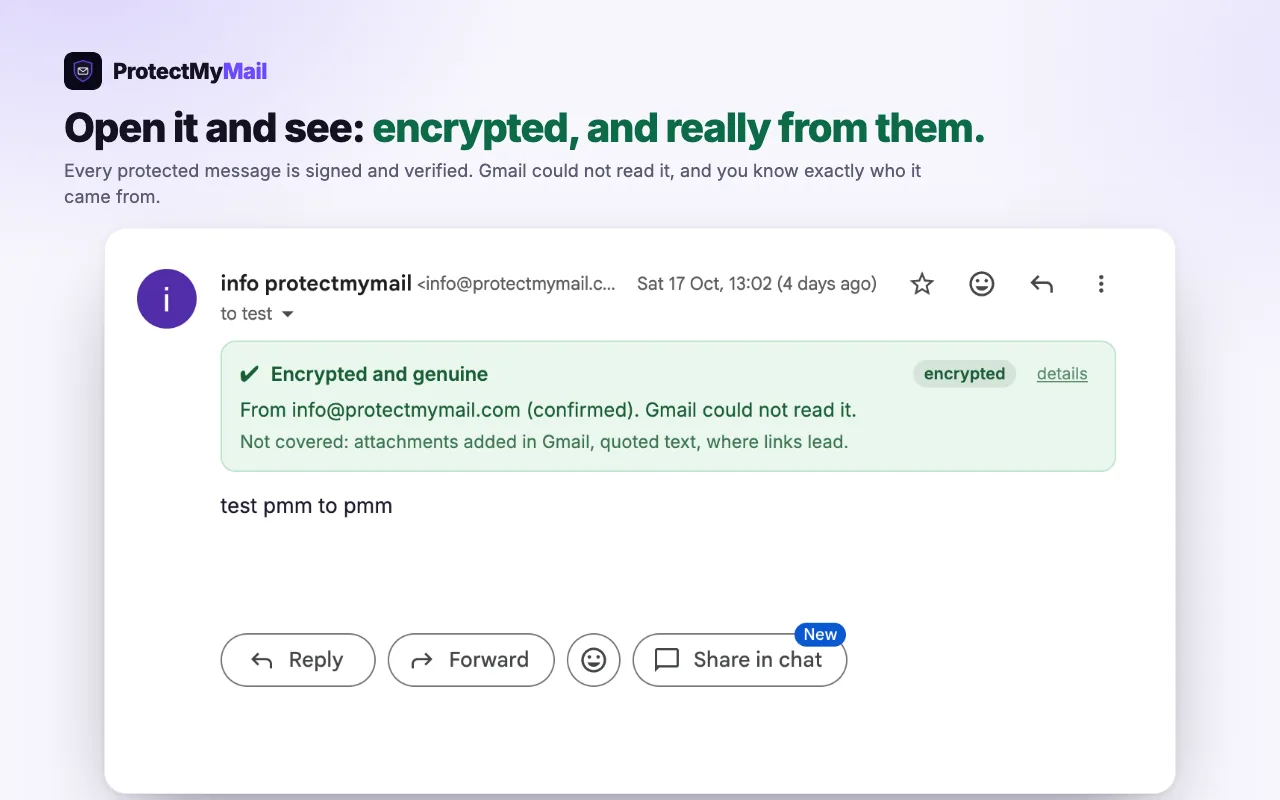
- The first mail from someone. If they confirmed their mailbox, the verdict is green, and ProtectMyMail offers to save them as a verified contact. Saving remembers the key they use now.
- A new key. If they changed their key in the last 7 days, the verdict is yellow: This sender is using a new key. That is normal after a new computer or a restore, and it is also what a hijacked account looks like. Check with them another way, for example by phone, then choose I checked with them: save the new key.
- Saved. From then on, their mail reads Encrypted and genuine · Verified contact, and ProtectMyMail warns you if a message from that address is ever signed with another key.
5. What is stored, and who can see it
- Your keys are generated on your own device and never leave it.
- Your message content is encrypted before it is sent. Only an unreadable package is ever stored on the way. We cannot read it, and neither can your provider.
- Public records - signatures and the public part of a verified key - are stored so recipients can check a message. These never contain your message text.
6. Setting it up
Setup takes a couple of minutes and needs no separate account signup.
- Pick the right one - the browser extension for Gmail or Outlook on the web, in Chrome, Edge or Firefox. The desktop app for any other mail program is coming soon.
- Create your account - enter your email address and the 8-digit code we send to it. There is no separate sign-up and no password on the website. If you came through someone's referral link, it is picked up by itself.
- Choose a password - it unlocks ProtectMyMail in this browser. Your key is made on your computer and stays there.
- Write down your recovery phrase - twelve words on paper. It is the only way back into your account if you lose your device.
- Already have an account? On the welcome screen, choose I already have an account and enter your 12 words. Every mailbox on the account comes back.
There is no company-held copy of your keys. If you lose both your device and your recovery phrase, we cannot restore your account. That is the price of mail only you can read.
Trial and plan
Your first mailbox starts a free 4-week trial. No payment details are needed. When the trial ends, protection pauses until you subscribe; mail you already received stays readable. A plan protects up to three mailboxes, paid monthly or yearly, and you can add more mailboxes. You choose a plan in the extension, and you manage your subscription and invoices in your account on the website.
See plans and prices.
7. Writing protected mail
Video: using ProtectMyMail every day
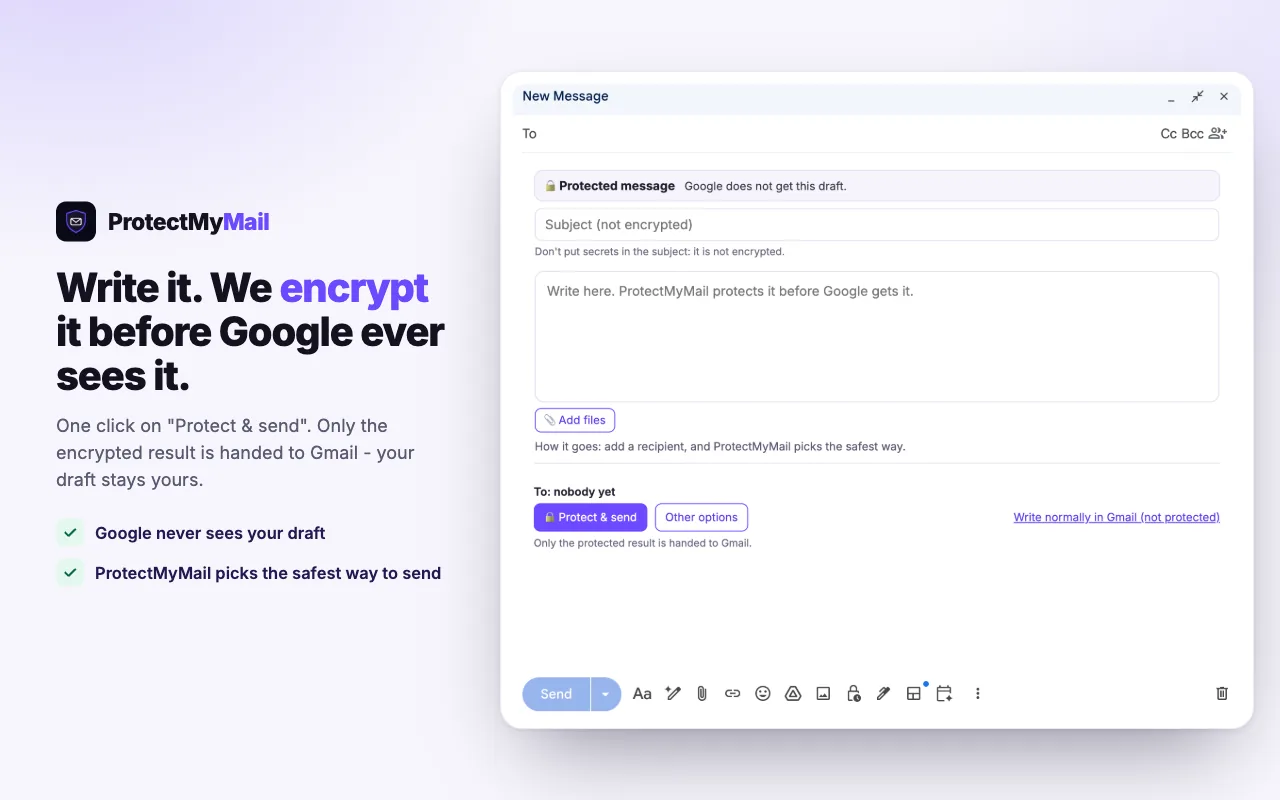
When you write a new email, a reply or a forward in Gmail or Outlook, ProtectMyMail opens its own protected field in the compose window. What you type there is protected before the webmail gets it, so your draft never reaches Google or Microsoft as plain text. The field has its own subject line, marked "not encrypted". A reply includes the earlier message, protected, below your text.
When you are done, press Protect & send. Only the protected result is handed to the webmail, which sends it. Once it has gone, a short message tells you how it was sent.
Four ways to send
Smart is the default and the right choice for most mail. The others are under Other options in the protected field.
- Smart (recommended) - ProtectMyMail chooses: encrypted for ProtectMyMail users, a secure link for everyone else.
- Encrypt & sign - only the recipient can read it, and it is signed as you.
- Sign only - a normal email that provably comes from you. The webmail can read it. This choice applies to the current email only.
- Secure link - for a recipient without ProtectMyMail. They get a link, confirm their email address with a one-time code and read the message in their browser. You can add an extra password; give it to them by phone, never by email.
ProtectMyMail remembers the way you chose for each recipient. To write without protection, choose Write normally under Other options.
Sending files
Use Add files in the protected field. Up to 20 files, 10 MB together, go into a secure link, encrypted in your browser together with the text. An email with files is always sent as a secure link, because encrypted mail cannot carry files yet. Files added with the webmail's own paperclip are not encrypted. Files are not virus-scanned: they are encrypted before they leave your browser.
Secure links you sent
Sent a link to the wrong person? Withdraw it in Settings › Secure Links, and it can no longer be opened. What someone already read cannot be un-read.
What your recipient sees
Someone without ProtectMyMail gets an ordinary email from you with a card in it: You have 1 encrypted message, your name and a button, Open secure message. Your message itself is not in that email.
- The button opens secure.protectmymail.com. They should always check that address in the browser's address bar.
- They confirm their email address with an 8-digit one-time code that we send to it. If the code does not arrive, it is worth looking in the spam folder.
- They read your message in the browser, still end-to-end encrypted, and can reply securely from the same page, with files too. If you set an extra password, they need it as well.
They need no account and nothing to install. The page also shows whether the message really comes from you.
The invite line
In the extension's Partner program screen, you can add a short invite line with your referral link to the end of your protected mail. A second switch, In ordinary mail, adds a line to mail you send without protection; it stays off until you switch it on. The screen shows each line exactly as it is sent.
8. Your account and devices
The extension at a glance
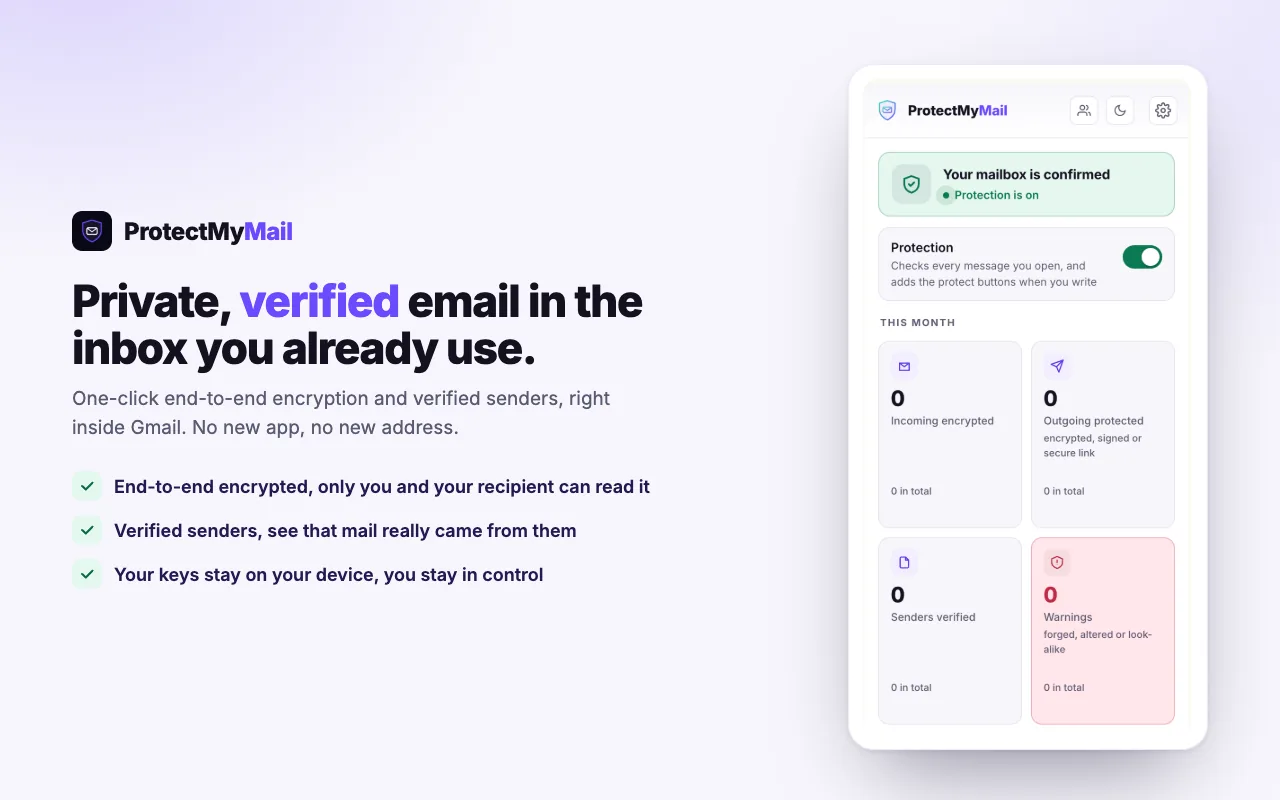
Click the ProtectMyMail icon in your browser's toolbar for a quick status: protection on or off, your mailboxes and trial, and this month's numbers. Open ProtectMyMail opens the full app in the browser's side panel (the sidebar in Firefox), or in a tab where there is no side panel. The dashboard shows this month's numbers, with the total under each: encrypted mail received, protected mail sent, verified senders and warnings.
Settings
In the extension's Settings you find the language, your devices, plan and billing, Partner program, Account & security (account e-mail, lock, replace my key, sign out), help, and the secure links you sent. The extension speaks 12 languages; Automatic follows your browser. The moon icon at the top switches between light and dark mode.
Using a second browser
There are two ways to use ProtectMyMail in another browser. Pair it as a device: it gets keys of its own, uses your account's plan and never sees your recovery phrase. Or restore it with your 12 words, so that it holds the phrase itself.
To pair a browser, install ProtectMyMail on it and choose This browser is another device of mine. Enter your email address, a name for the device and a password. On a browser that has your recovery phrase, open Settings › Your devices: the new browser appears there under Wants to link, with its name. Choose Link, type the six digits the new browser shows and choose Confirm. The new browser then links itself to your account, which can take a few minutes. A device you lost can be revoked in the same place.
On the website, the Devices & plugins card in your account lists the browsers signed in to it. Disconnect signs out one browser.
Changing your account e-mail
Your account e-mail is where sign-in codes, receipts and account mail go. You change it in the extension, not on the website, because the change is signed with your key, which only the extension holds. Your other protected mailboxes stay as they are.
- Start the change - in the extension, open Settings › Account & security › Account e-mail, choose Change and enter the new address.
- Confirm it is you - we send a code to your current address.
- Confirm the new address - a second code goes to the new address, to prove you can read that mailbox. If the new address is already one of your protected mailboxes, this code is not needed.
- Keep the old address, or not - you can keep protecting the old address as one of your mailboxes, if your plan has room for one more.
- Done - from now on, sign-in codes, receipts and account mail go to the new address, and you are signed out of the website. We send a notice to the old address.
The notice to the old address has a "This wasn't me" link. For 7 days, it undoes the change completely: the old address becomes your account e-mail again, you are signed out everywhere and the extension asks you to reconnect. After an undo, the account e-mail cannot be changed again for 30 days.
No longer have access to the old address? When you start the change, say that you can no longer access it. Your recovery phrase then proves it is you, instead of the code. We still send the notice to the old address, and it can still undo the change for 7 days.
- One change a day. The account e-mail can be changed at most once every 24 hours.
- No second trial. An address that used to be the account e-mail of a ProtectMyMail account does not start a new free trial. If it is used to set up another account, that account starts without a trial.
Deleting your account
Sign in on the website and open Settings › Delete account. We email a code to your account address; enter it and type the address to confirm. You are signed out everywhere, and your subscription stops renewing, with no refund for the rest of the current period. For 7 days you can cancel with the link in the email we send you. After that, we delete the account. Your key, recovery phrase and protected messages stay in your browser until you remove the extension: we hold no copy of them.
Partner program
Recommend ProtectMyMail and earn 30% of what the people you bring in pay, every month. You switch it on in the extension, under Partner program, after accepting the Partner terms. Your referral link is there and in your account on the website; your referrals and payouts are in the partner portal.
9. Honest limits
ProtectMyMail is early Beta software. It works and is in daily use on a test setup, but you should know exactly what it does not do before you rely on it for anything that matters. We make no guarantee that it catches every threat or never fails.
- Honest about what this does - End-to-end encryption applies between ProtectMyMail users (extension to extension). Mail to and from ordinary providers is bridged and labelled honestly - verified, authenticated, or unverified - so a guess is never shown as a fact.
- Not independently audited. It has not yet had a third-party security audit.
- No mobile version yet. Most mail is read on a phone; there is no mobile app at launch.
- The subject line is not encrypted. Only the message body is.
- Protected mail you open is shown inside the webmail page. Your drafts never reach the webmail as plain text, but a message you read is decrypted in the page.
- Metadata is not hidden. Who you write to, and when, is still visible.
- "Verified" means one specific thing: someone proved control of that mailbox within the last six months. It is not a real-world identity check.
- An attacker who takes over your mailbox can publish a new key and send valid protected mail as you.
- No forward secrecy. If your recovery phrase is recovered, past encrypted messages can be read.
- The apps are not code-signed yet, so your operating system may warn about an unrecognised publisher.
10. Troubleshooting
My mail lands in spam
Mail providers are careful with brand-new mail accounts that have no sending history yet, so their mail, protected or not, lands in spam more often. Ask your recipient to look in the spam folder and mark your mail as not spam; their provider learns from that. The same goes for the one-time code of a secure link: if it does not arrive, look in the spam folder.
A message says the sender is using a new key
Their key changed in the last 7 days. That happens when someone sets up a new computer or restores their account, and it is also what a hijacked account looks like. Check with them another way, for example by phone, before you trust anything sensitive. Then choose I checked with them: save the new key, and the notice does not come back for that key. First contact, new keys and verified contacts explains the verdicts.
A new computer: restore, or add a device?
- Restore with your 12 words if the new browser should hold your recovery phrase itself. On the welcome screen, choose I already have an account and type the words. Every mailbox on the account comes back.
- Add it as a device if you would rather not type your words there. Choose This browser is another device of mine, then approve it on a browser that has your recovery phrase by typing the 6-digit code the new browser shows. Using a second browser has the steps.
No protected field or Protect button when I write
Check these, in this order:
- Reload the webmail tab. A Gmail or Outlook tab that was open while ProtectMyMail was installed or updated needs a reload.
- Unlock ProtectMyMail. Click its icon in the browser's toolbar and enter your password.
- Use a supported mailbox. ProtectMyMail works in Gmail and Outlook on the web, in Chrome, Edge or Firefox. Where it works lists them.
- Check your plan. When the trial has ended, the extension shows Protection paused, and new mail goes out unprotected until you subscribe.
Still stuck? Write to us through the contact page.
11. Glossary
- Key - the private secret on your device that signs and decrypts your mail.
- Signature - proof that a specific message came from a specific key, unchanged.
- Verified sender - a signature plus a confirmed link between the key and the mailbox.
- Recovery phrase - twelve words that can rebuild your key if you lose your device.
- Bridge - how ordinary email to and from non-users is passed through and labelled honestly.
- Secure link - a protected message for someone without ProtectMyMail, opened in the browser after a one-time code.
- Device - another browser paired with your account. It has keys of its own and no recovery phrase.
- Verified contact - a sender whose key you saved, so that ProtectMyMail warns you when their mail is signed with another key.
12. Updates & source
A public changelog with extension updates and technical notes is coming soon. Until then, the date at the top of this guide shows when it last changed.